

Sep
Resources
YouTube Profile Picture Size: Dimensions, Safe Area & Design Tips
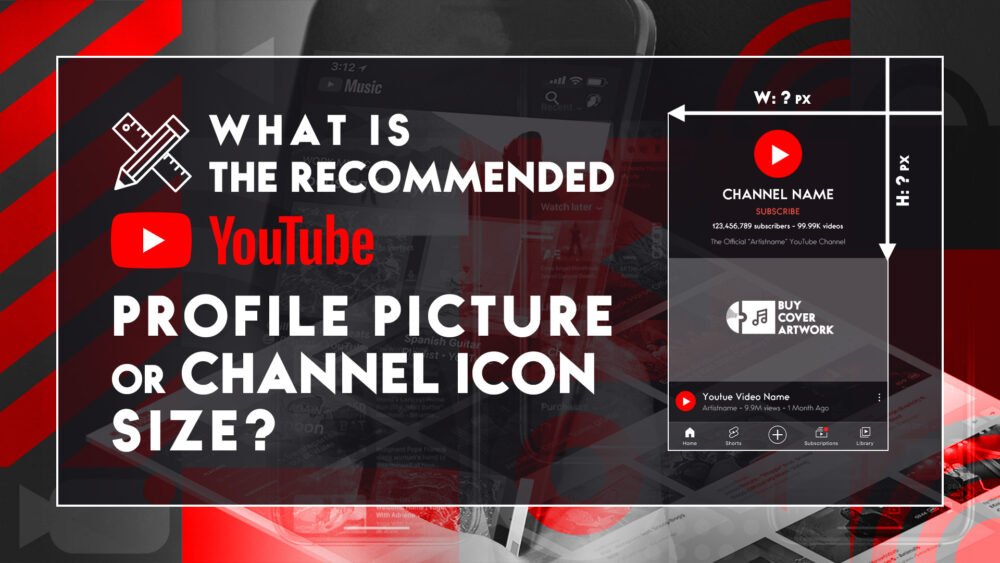
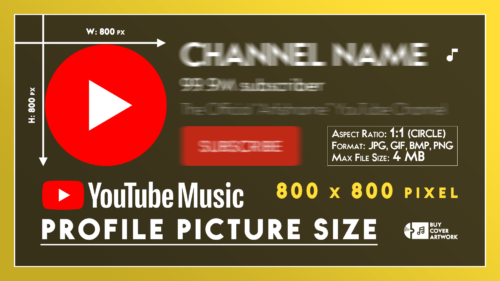
Your YouTube profile picture (also known as a YouTube channel icon or YouTube avatar) is the first thing viewers notice. Having the correct dimensions ensures your brand looks sharp and professional. The recommended YouTube profile picture size is 800 x 800 pixels, with an aspect ratio of 1:1.

What is the Official YouTube Profile Picture Size?
To prevent your image from looking pixelated or poorly cropped, you must follow YouTube’s technical requirements.
Here is a quick breakdown of the official specifications to help you set up the perfect YouTube profile picture size:
| Specification | Recommended Value |
|---|---|
| Recommended Size | 800 × 800 pixels |
| Minimum Dimensions | 98 × 98 pixels |
| Aspect Ratio | 1:1 (Square) |
| Display Shape | Circular Crop (By YouTube) |
| Max File Size | 4 MB or smaller |
| Accepted Formats | JPG, PNG, GIF (No animated GIFs), BMP |
Understanding the YouTube Channel Icon Size Circular Crop
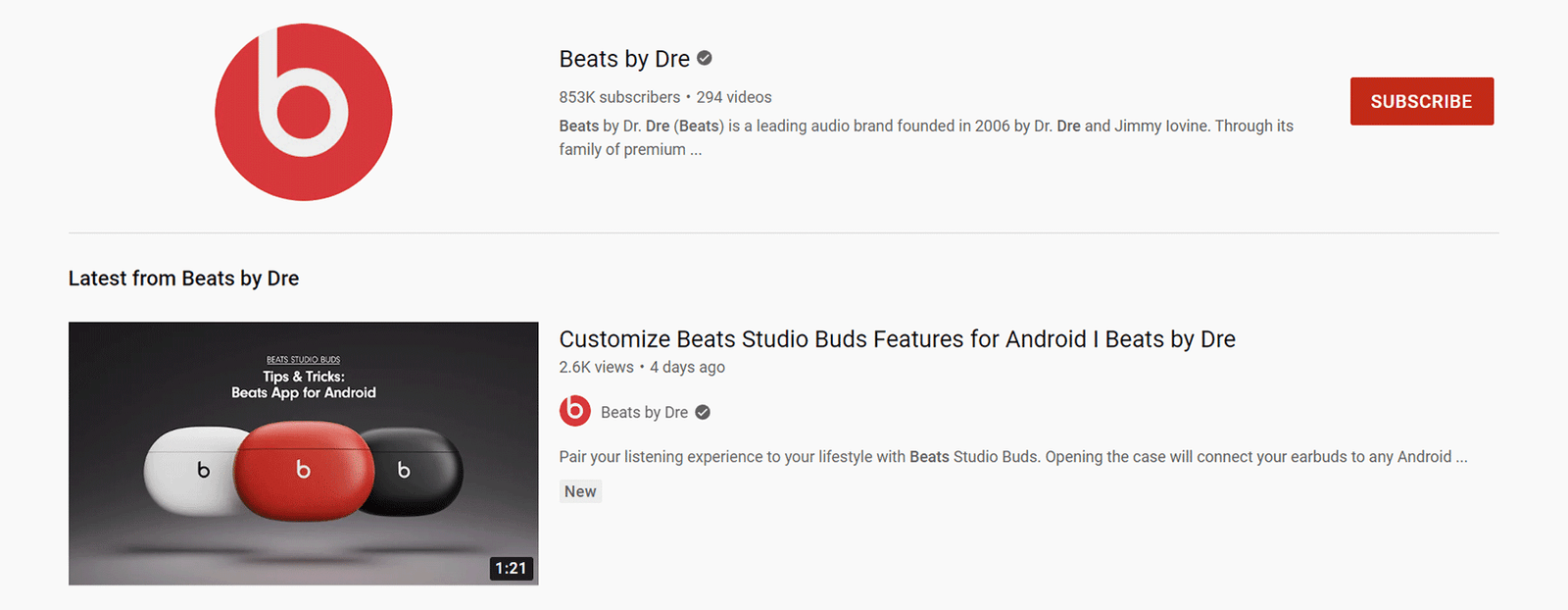
While you must upload a square image (1:1 ratio), YouTube automatically crops your channel icon into a circle across the platform—including your channel page, watch pages, and video comments.
This means any critical elements of your visual identity, such as text, logos, or your face, must be positioned within the “Safe Area” (the center of the square). When exporting your digital graphics or custom cover art, make sure the corners do not contain any essential details, as they will be cut off.


How to Change and Update Your YouTube Avatar Size
Updating your YouTube avatar size and layout is straightforward. Follow these steps to upload your new artwork via YouTube Studio:
- Sign in to YouTube Studio.
- From the left menu, select Customization, then click on the Branding tab.
- Click Change next to your current profile picture.
- Select your new 800×800 px image, adjust the circular crop if needed, and click Done.
- Click Publish in the top-right corner to save your changes.
📌 Note: If you encounter any technical update issues, you can always refer to the official YouTube Help Center for system requirements and asset management policies.
5 Expert Design Tips for Your YouTube Profile Picture Dimensions
Creating an eye-catching YouTube avatar requires more than just getting the dimensions right.
Since your icon appears very small in comment sections and mobile feeds, consider these professional design principles:
- Leverage Whitespace: Leave enough breathing room around the edges of your logo or icon so it doesn’t feel cramped within the circular border.
- Keep Text Minimal & Readable: Avoid long words or complex text. If your brand relies on a name, use a bold, clean monogram or a single letter.
- High Contrast is Key: Use striking contrast to stand out. Utilizing a dark, punchy palette (such as deep black mixed with vibrant reds or neon tones common in Cyberpunk or Synthwave aesthetics) ensures your avatar pops against both YouTube’s light and dark modes.
- Brand Consistency: Your profile picture, YouTube banner, and video thumbnails should share a cohesive design language, color scheme, and mood.
- Avoid Over-Complicated Artwork: Highly detailed illustrations lose their impact when scaled down on mobile screens. Opt for bold lines and clear focal points.











Frequently Asked Questions About YouTube Profile Picture Size
Yes, you can upload higher resolution square images (like 1080×1080 or 1920×1920 pixels) as long as the file size is under 4 MB. YouTube will automatically scale it down to the recommended size while maintaining its sharpness.
Your avatar might look blurry if you uploaded an image smaller than 98×98 pixels, used the wrong aspect ratio, or if YouTube highly compressed a massive file. Stick to an 800×800 px PNG format for the cleanest results.
No, YouTube does not support animated GIFs for profile pictures. While you can upload a static GIF file, any animations will not play, and only the first frame will be displayed.
The required upload size (800×800 px) is identical for all devices. However, YouTube scales the image down depending on the screen size. It appears smallest in video comment sections and largest on the desktop channel homepage.
👩🏻🏫